Post by : Sami Jeet
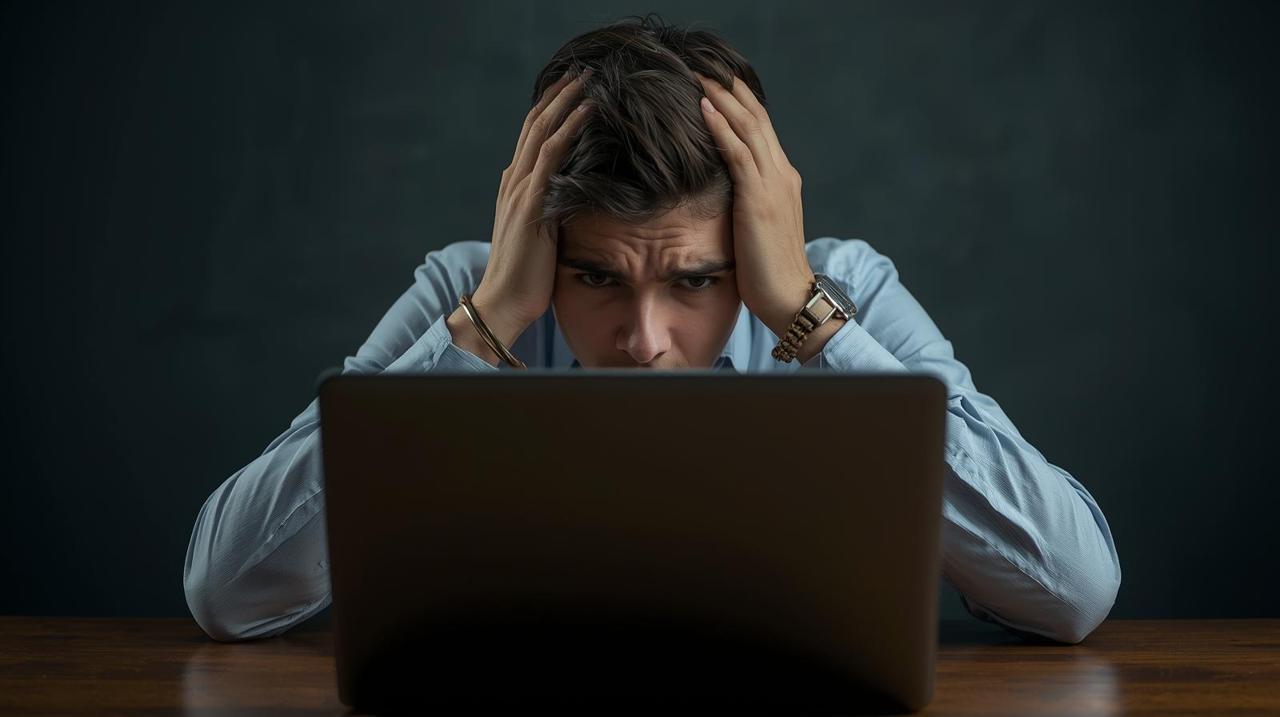
A sluggish laptop can disrupt your workflow, diminishing productivity and causing frustration. Various factors from outdated applications to insufficient storage can lead to performance issues. With an understanding of how your laptop utilizes resources and methodical optimizations, you can significantly enhance its speed without the need for a new purchase.
Excessive CPU and RAM usage due to unnecessary background applications is a significant contributor to slow laptops. Utilize Task Manager (Windows) or Activity Monitor (Mac) to pinpoint resource-draining applications and close non-essential ones. Heavy programs such as browsers with numerous tabs, graphic design software, or games often hinder performance.
Older OS versions can lead to glitches, memory issues, and overall sluggishness. Regularly updating your system not only installs important security patches but also improves performance capabilities and stabilizes hardware through driver upgrades. Ensure updates for:
Operating System
Graphics Drivers
Device Firmware
These updates often yield immediate performance enhancements.
When storage is nearly full, it severely affects a laptop's performance. Remove large, unused files, redundant downloads, and temporary data. Utilize built-in tools like Disk Cleanup or Storage Management to create space, aiming to keep at least 20–25% of storage free for optimal function.
It's common for users to install applications that never see use again. These programs consume valuable storage and may run background tasks. Uninstalling them can free up resources and enhance speed. Target removing trial versions, redundant utilities, and infrequently used software.
An excess of startup applications can slow down boot times. Prevent unnecessary programs from launching automatically. Tools like Task Manager’s Startup Tab let you manage what initiates during system boot, which can improve startup speed effectively.
Malware often triggers unexpected slowdowns in system performance. Implement a reliable antivirus program to conduct scans on your laptop. Harmful software can consume CPU resources, extract data, or operate unseen processes. Erasing malware can restore normal functionality.
If your laptop faces difficulty during multitasking, upgrading RAM is one of the most effective long-term enhancements. An additional RAM boosts responsiveness, optimizes app management, and facilitates smoother operation for demanding tasks. For older devices, adding 8GB or 16GB of RAM can substantially enhance performance.
Replacing a traditional hard drive with an SSD (Solid-State Drive) delivers the most effective speed improvement. SSDs greatly enhance boot times, application loading speeds, file access, and overall responsiveness. Even older laptops can feel revitalized following an SSD upgrade.
Browsers and various applications accumulate cache files that can bog down system functionality over time. Clearing these files can free up space and remove corrupted data that might hinder performance. Use built-in cleaning tools or utilities like Disk Cleanup (Windows) and Optimize Storage (Mac).
An excess of browser extensions can use up memory and slow down your laptop. Eliminate unnecessary add-ons to keep only the essential ones, thus improving not only your browsing experience but overall system performance.
Modern operating systems utilize animations that can demand graphics resources. Disabling these visual effects can lead to enhanced speed, especially in older laptops. Disable:
Animation effects
Fancy transitions
Transparent backgrounds
This adjustment can provide a smoother experience without compromising usability.
Many individuals keep their laptops in sleep mode for extended durations. Restarting helps clear memory, closes frozen processes, and revitalizes the system. A simple restart frequently resolves minor performance issues immediately.
Storing large files such as videos, project documents, or photos locally can slow down your device. Shift bulky data to cloud storage to free up space, which also ensures better backup options and guards against local storage limitations.
Engaging power-saving modes may limit CPU performance. Switching to Balanced or High Performance mode can facilitate speedier processes. Also, confirm that your laptop isn’t throttled due to overheating or low battery conditions.
Dirt and dust in cooling vents can precipitate overheating, causing your laptop to slow down to protect itself. Cleaning these areas enhances airflow and maintains consistent speed, as overheating can be a hidden catalyst for sudden performance drops.
This article offers general guidance on techniques for augmenting laptop performance. It focuses on user-driven solutions and does not replace professional technical assistance. For hardware upgrades, device-specific issues, or persistent troubles, users are encouraged to consult certified technicians.










Anticipated Dates for UAE Eid Al Adha 2026 Unveiled by Astronomical Experts
Experts predict Eid Al Adha 2026 in the UAE to start on May 27, prompting early holiday planning amo

DAE Achieves Remarkable Growth in Q1 2026 With Record Revenue
Dubai Aerospace Enterprise announces impressive financial results for Q1 2026, reflecting a surge in
Price Increase for Sony PS5 in Southeast Asia Effective May 1
Sony announces a price increase for the PS5 across Southeast Asia starting May 1, 2026, impacting ga

Potential ‘Super El Niño’ in 2026: Understanding the Climate Risks
Could a Super El Niño emerge in 2026? Discover its implications and potential global climate impacts

Global Energy Crisis Intensifies: Markets React to Oil Supply Challenges
Markets are on edge as oil disruptions escalate, influencing prices and economic stability. Explore

Must-See Tourist Spots in London You Can't Overlook
Explore London's essential attractions, from royal landmarks to vibrant markets, ensuring an unforge